Smart detection
Find faces, QR codes, barcodes and common sensitive text. Apply suggested masks with the Smart tool, then tap individual areas to adjust or remove them. Add a manual mask wherever you need one.
Read the guide
 SnapMosaic

SnapMosaic · Photo privacy
Hide private details before you share. Smart detection and precise control, on your device.
 Get it on Google Play
Explore the tools
Get it on Google Play
Explore the tools
Android · No account required
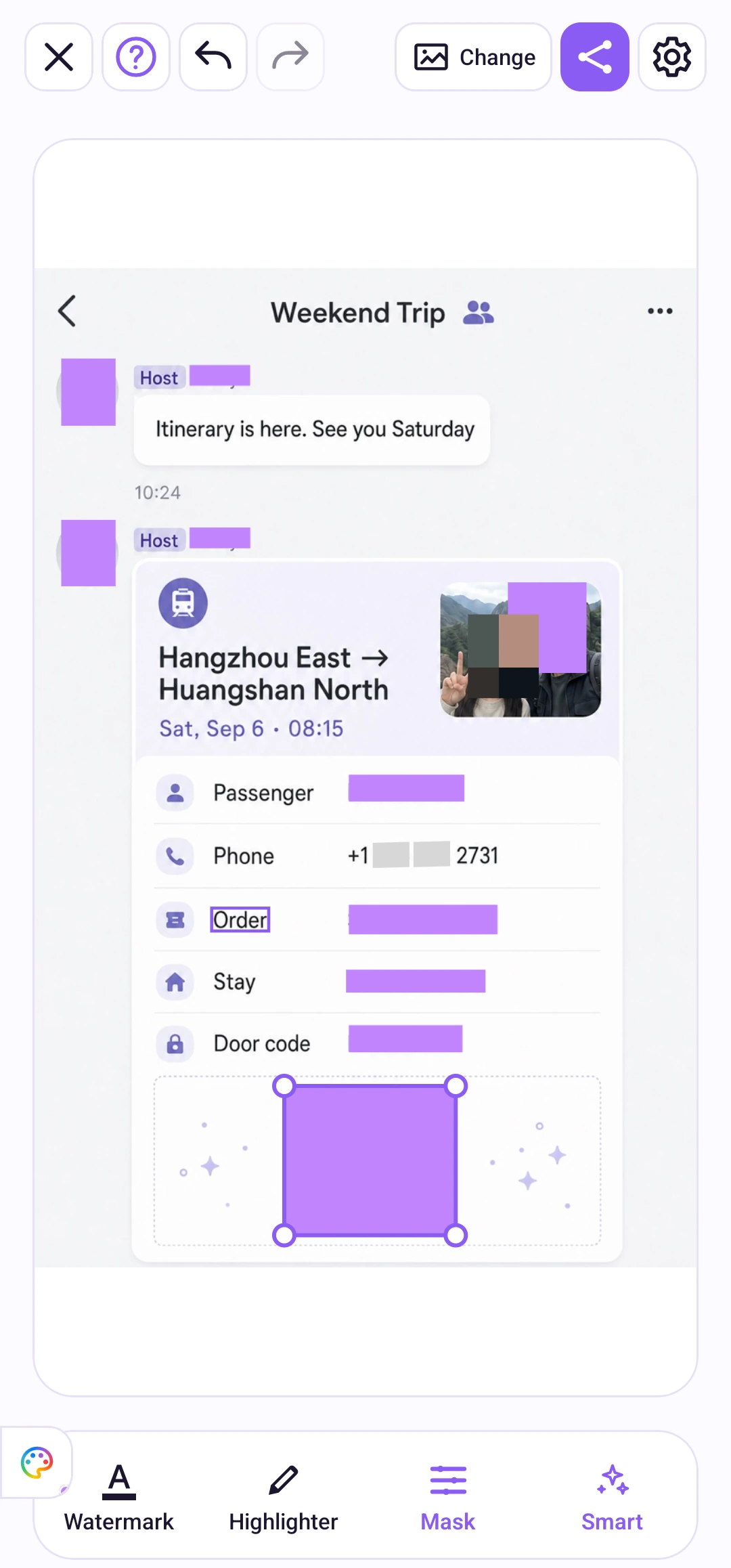
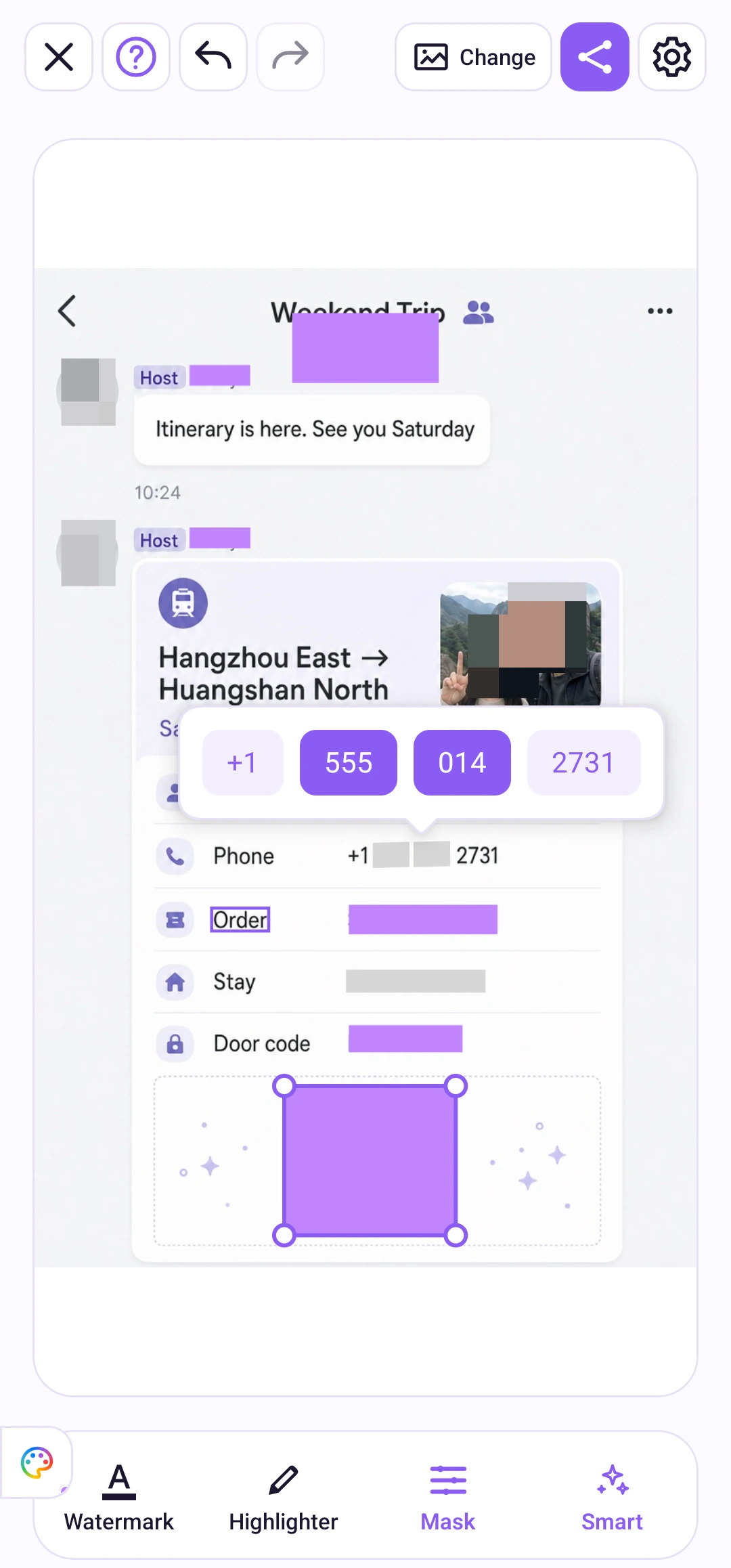
On-device photo editing
Your selected photos stay on your device for editing. Review each mask, adjust the result, and share when you are ready.
How privacy works
Features
Long press a detected line. Select just the words to hide, and keep the rest readable.
Read the guide
Cover detected faces with emoji stickers. Choose a different expression for each face and keep the mood of a group photo.
Read the guide
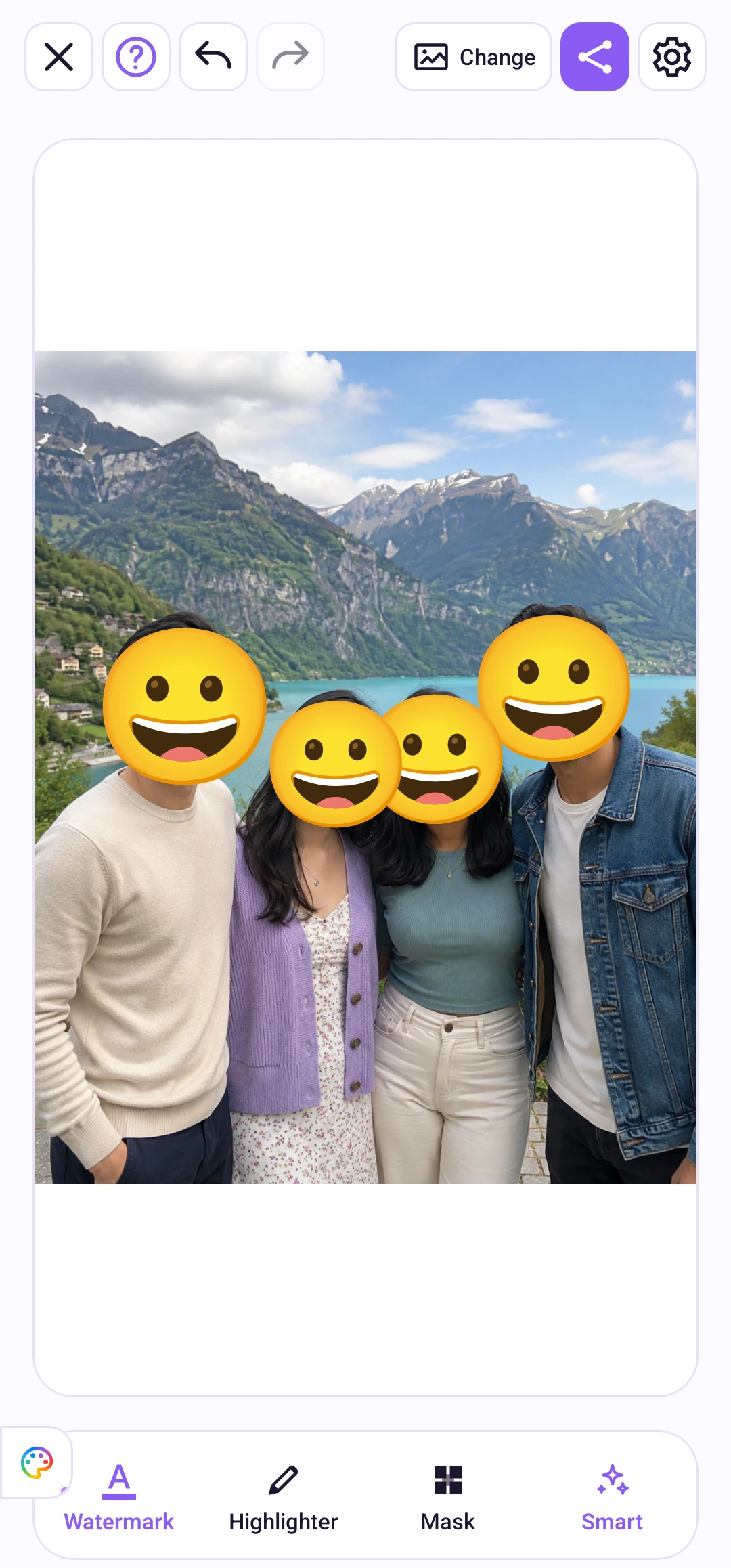
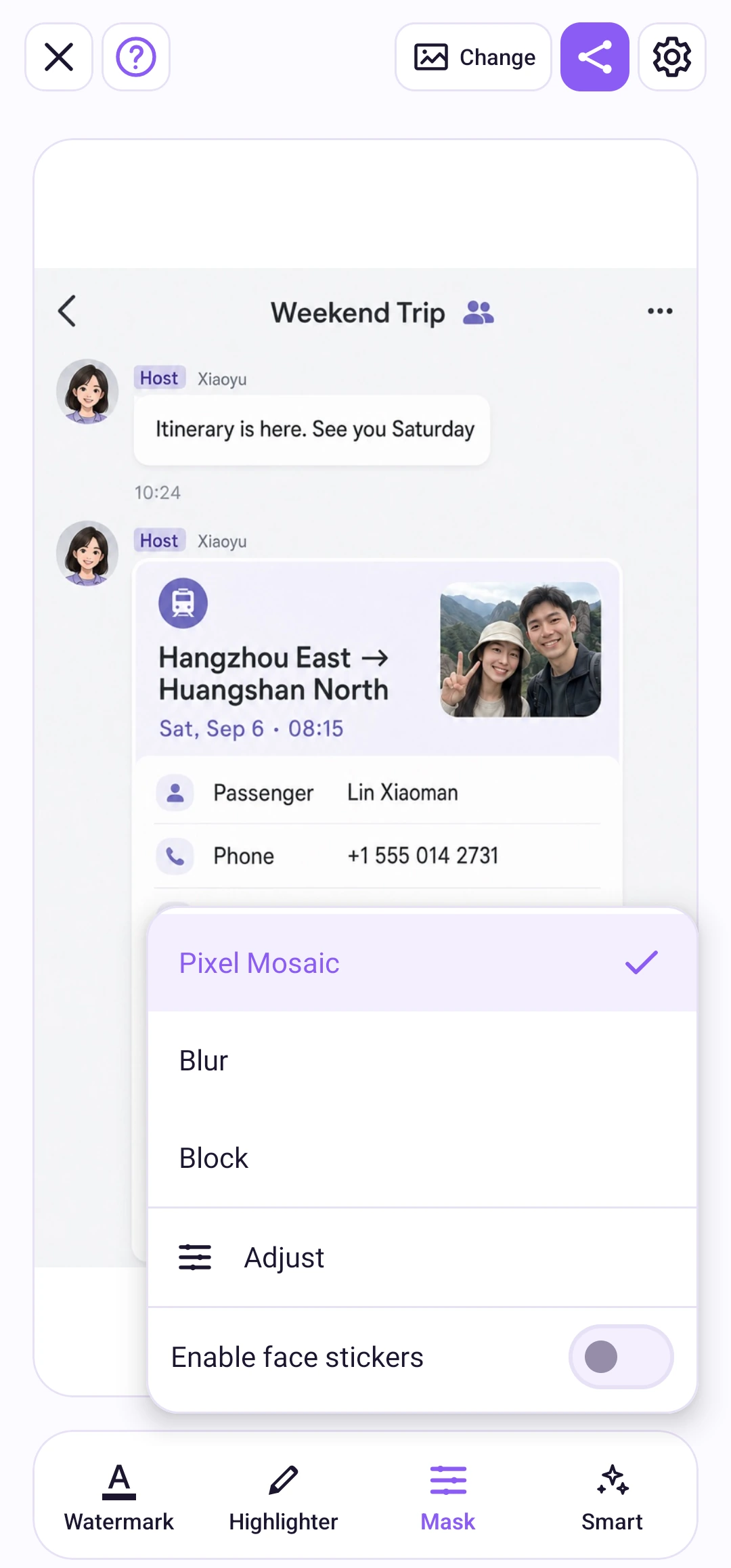
Use mosaic, blur or a solid block, with a different effect for each area. Draw with a brush or rectangle, adjust the effect, zoom in for detail, and undo or redo your edits. The marker highlights content and keeps it readable.
Read the guide
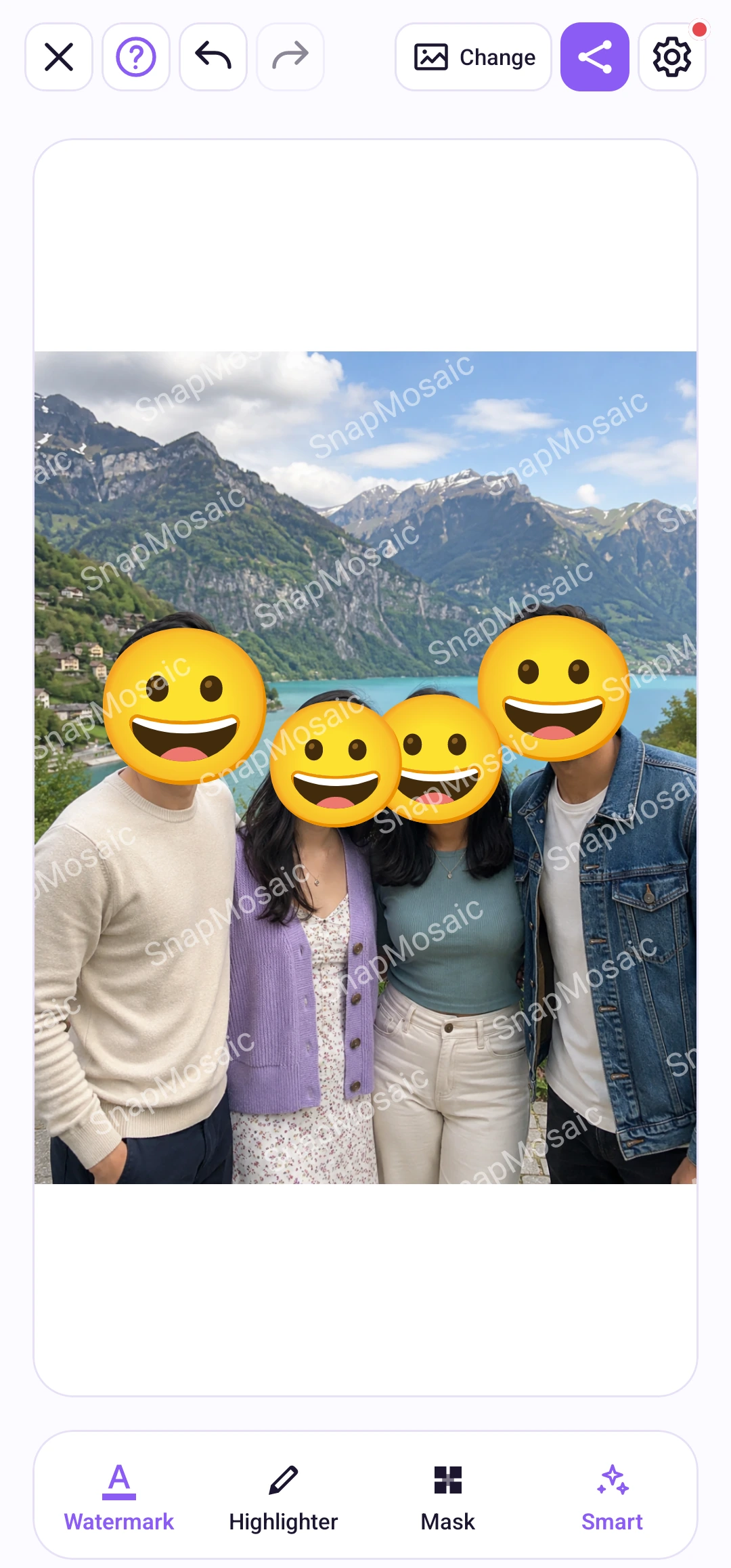
Place a repeating text watermark across your image to state its purpose or intended use. Customize the text, color, opacity, size, angle and spacing.
Read the guide
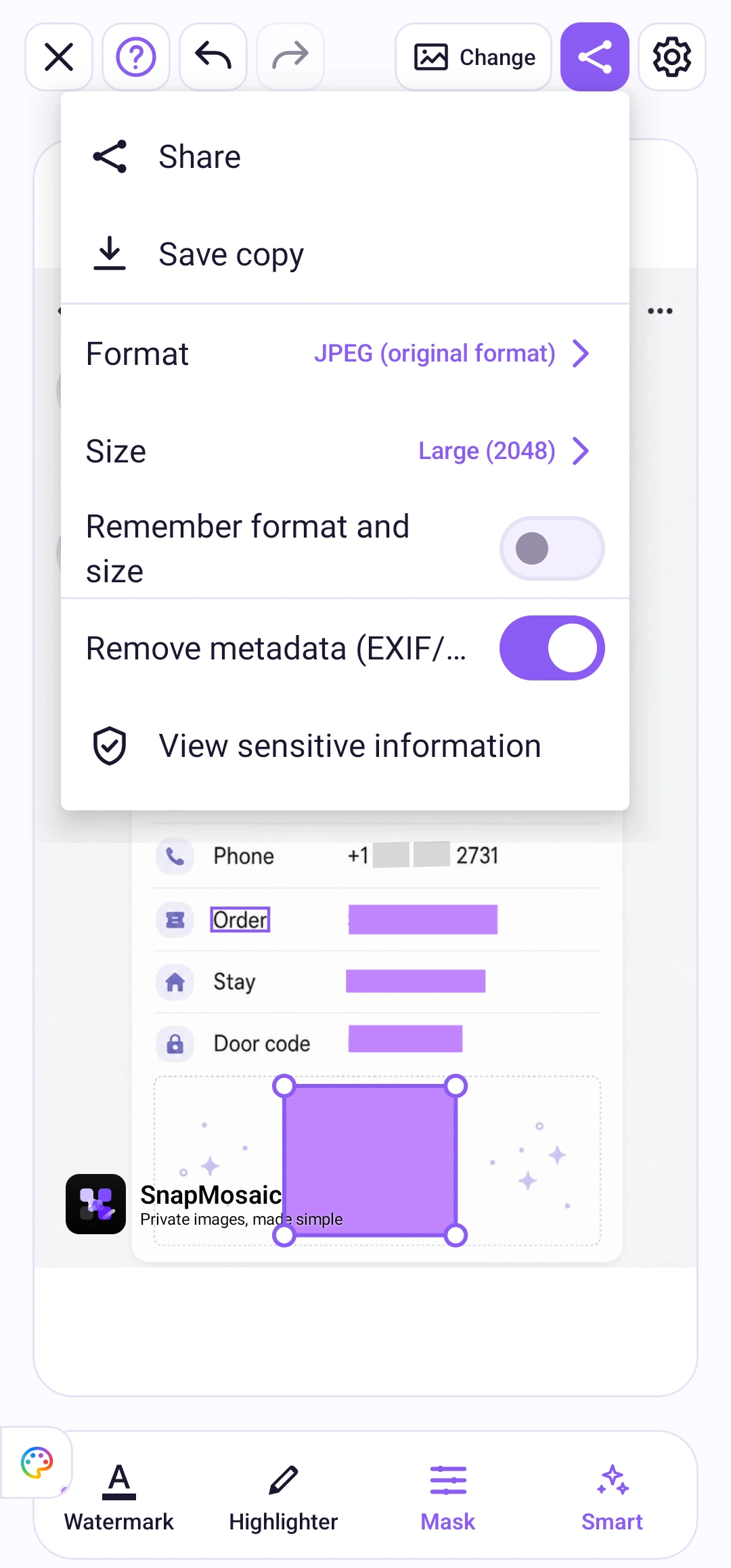
Export as JPEG, PNG or WebP. Choose an output size, save a new image or share through Android. Remove EXIF and GPS metadata at export to keep location details out of the shared file.
Read the guide
Find faces, QR codes, barcodes and common sensitive text. Apply suggested masks with the Smart tool, then tap individual areas to adjust or remove them. Add a manual mask wherever you need one.
Read the guideChoose 1–10 photos, edit each one, and export the current photo or the whole group.
Read the guideSave text you often need to hide and include it in smart detection.
Read the guide
Photo editing tools are free to use, and free exports include a SnapMosaic brand watermark by default. An optional one-time Pro purchase removes that brand watermark and in-app ads.
No account is required. Your selected photos are processed on your device and are not uploaded to SnapMosaic servers for editing. Ads, purchases and supporting services may use a network connection; see the privacy policy for details.
Use the Google Play account you purchased with, then open the Pro page in SnapMosaic settings and choose Restore purchases. An active purchase removes the SnapMosaic brand watermark and in-app ads.
A little privacy, before your next share.
Get it on Google PlayPhoto editing tools are free. Pro is optional.