
Photo editing
Multiple photos
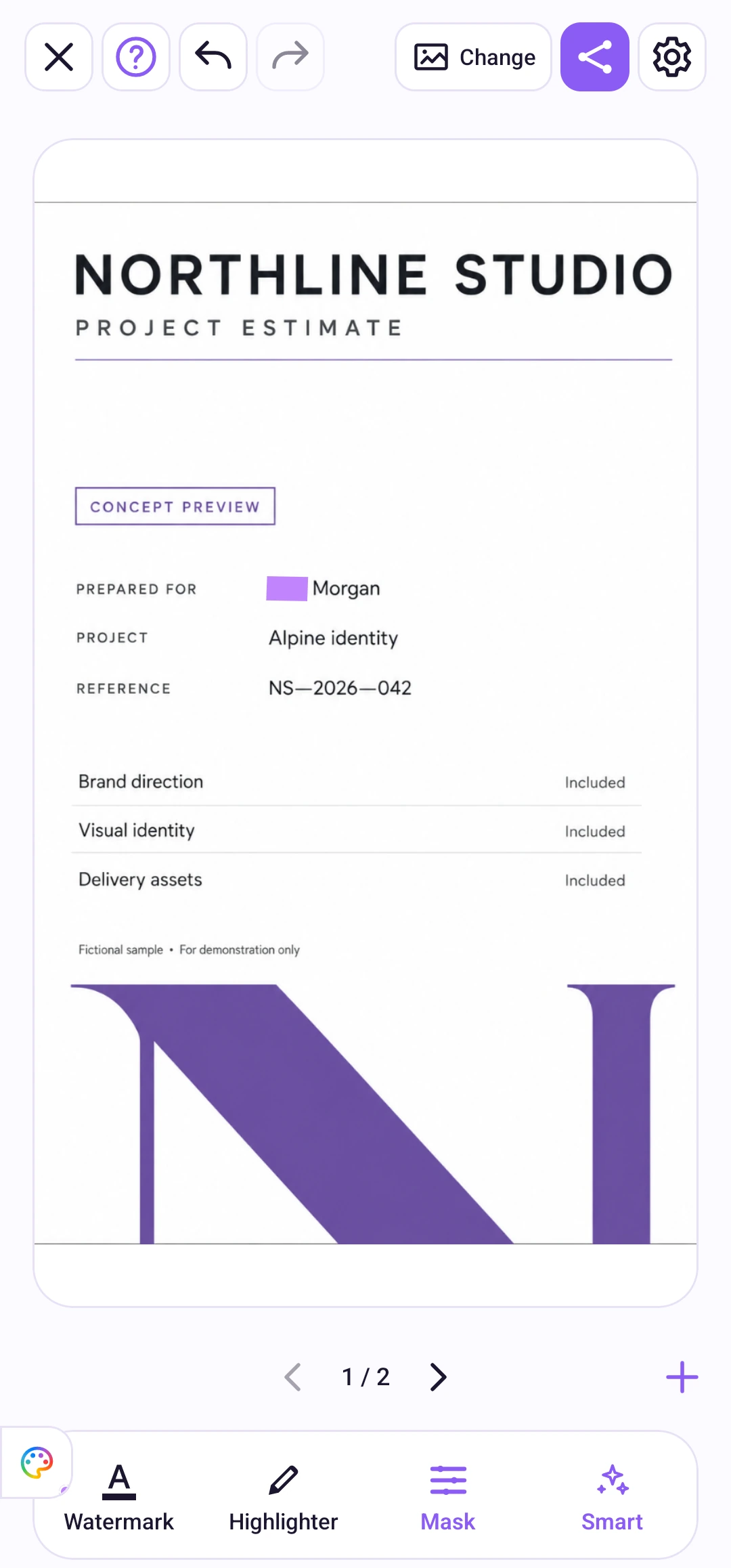
Choose 1–10 photos, edit each one, and export the current photo or the whole group.
Watch the steps
Choose a timestamp to jump to a step. Use fullscreen for a closer look.
How to use it
Use the arrows below the canvas to switch photos. In a group, use + to append more, up to 10 in total. Existing edits stay with each photo. Replacing the group is a separate action.
Each photo has its own masks, text watermark and undo history. Mask positions are not copied between photos. In the export menu, choose the current photo or all photos, then review every result.
The top-left image-actions button offers “Clear edits” for the current photo and “Exit editing” for the whole group. Clear edits keeps the photo open; exiting returns to the start screen after confirmation when there are edits.