

Photo editing
Smart detection
Watch the steps
Choose a timestamp to jump to a step. Use fullscreen for a closer look.
How to use it
Wait for the photo to load. If automatic masking is enabled, review the applied masks. Otherwise, tap “Smart” at the bottom to apply suggested masks to faces, codes, and common sensitive text.
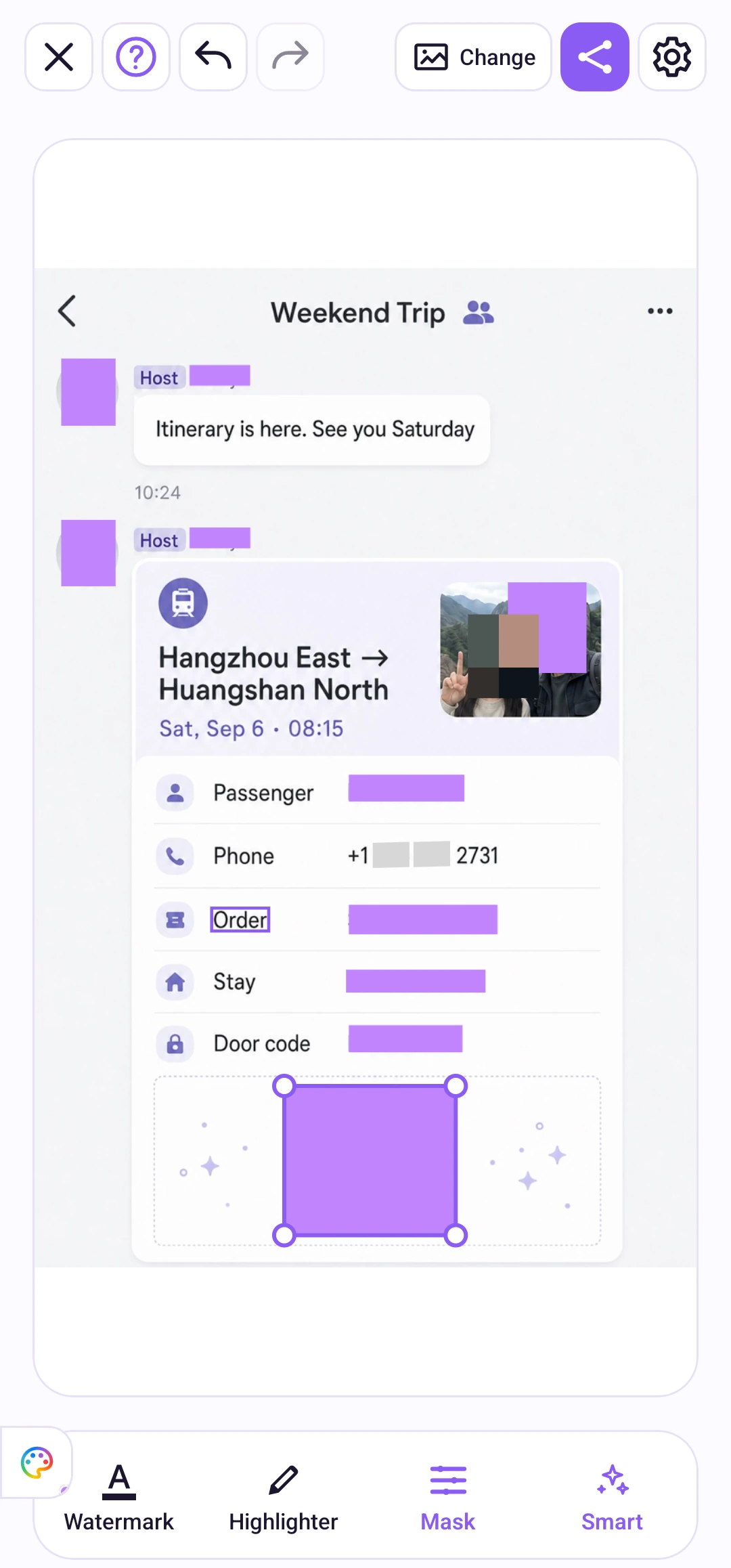
Automatic masking and individual areas
In Settings, turn “Auto-mask new photos” on or off. It is on by default if you have not saved a preference. Changing it affects newly loaded photos; it does not change the photo already open.
To change a detected area's effect, select an effect and tap the area. If that area already uses the selected effect, tapping it removes its mask. Check the result after each change.

Detection help and settings